
Start using Google Sheets drop-down menus! It’s a total game changer.
Tired of messy data because everyone fills it out differently?
Try Google Sheets drop-down menus—it makes things super easy!

First, open a new Google Sheet
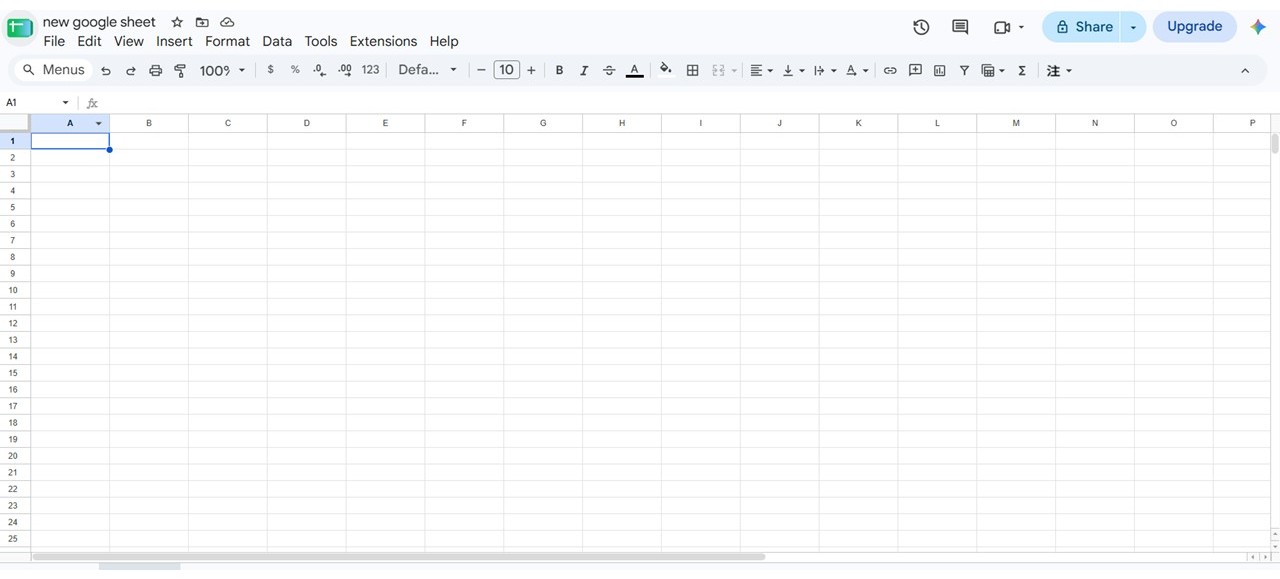
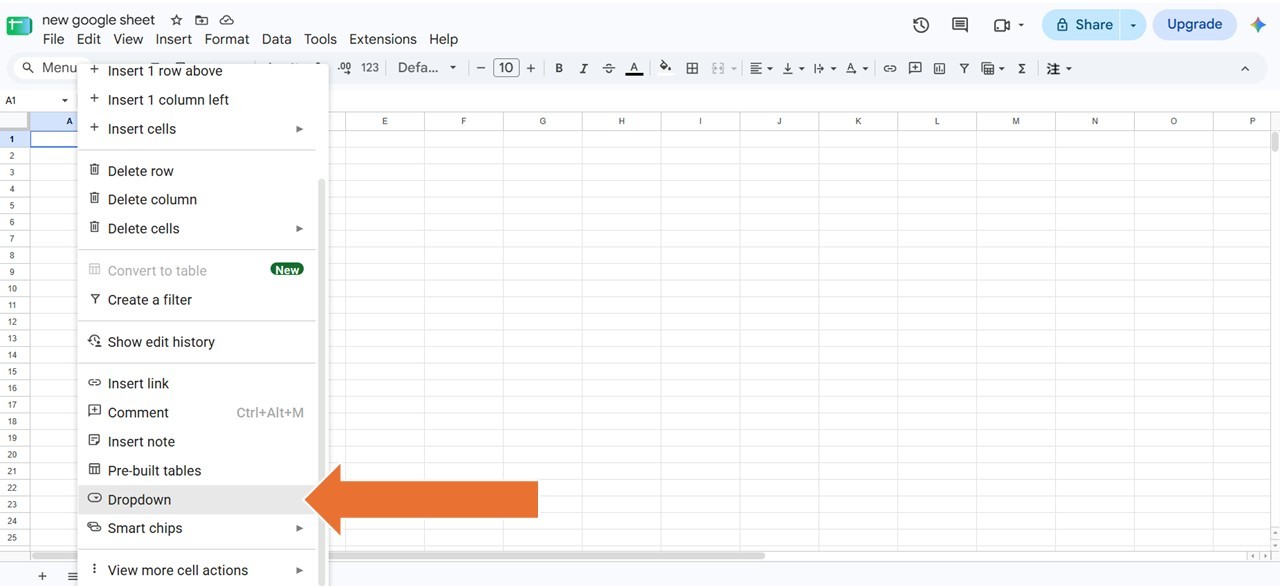
Right-click the cell where you want to add the menu, scroll down, and select ‘Dropdown‘
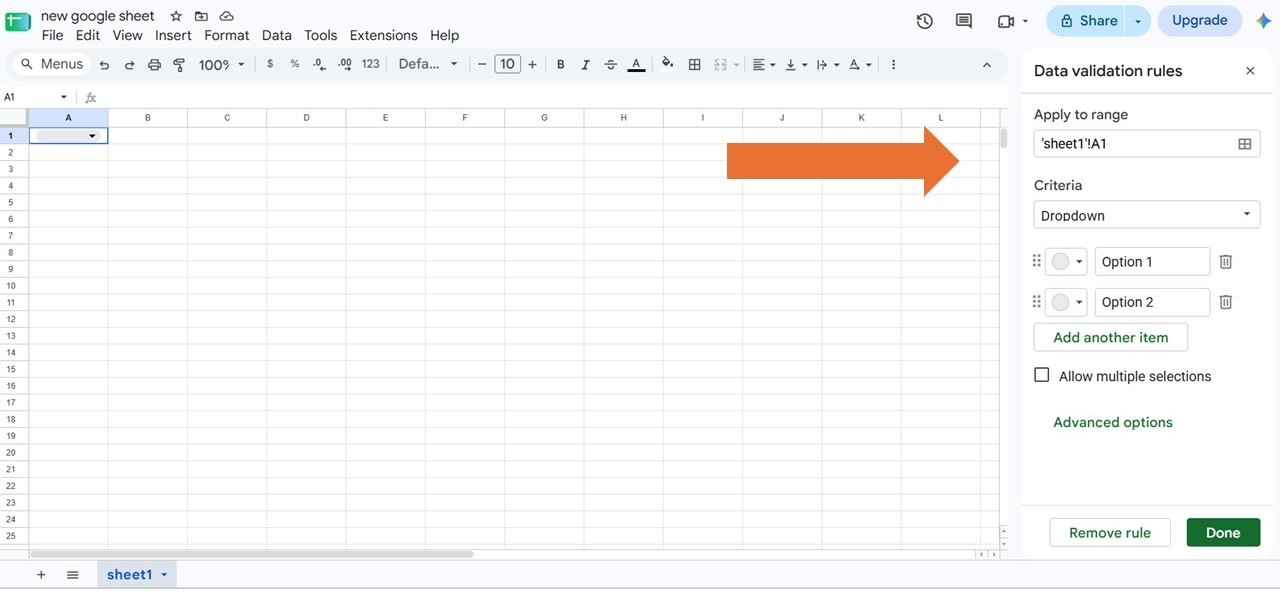
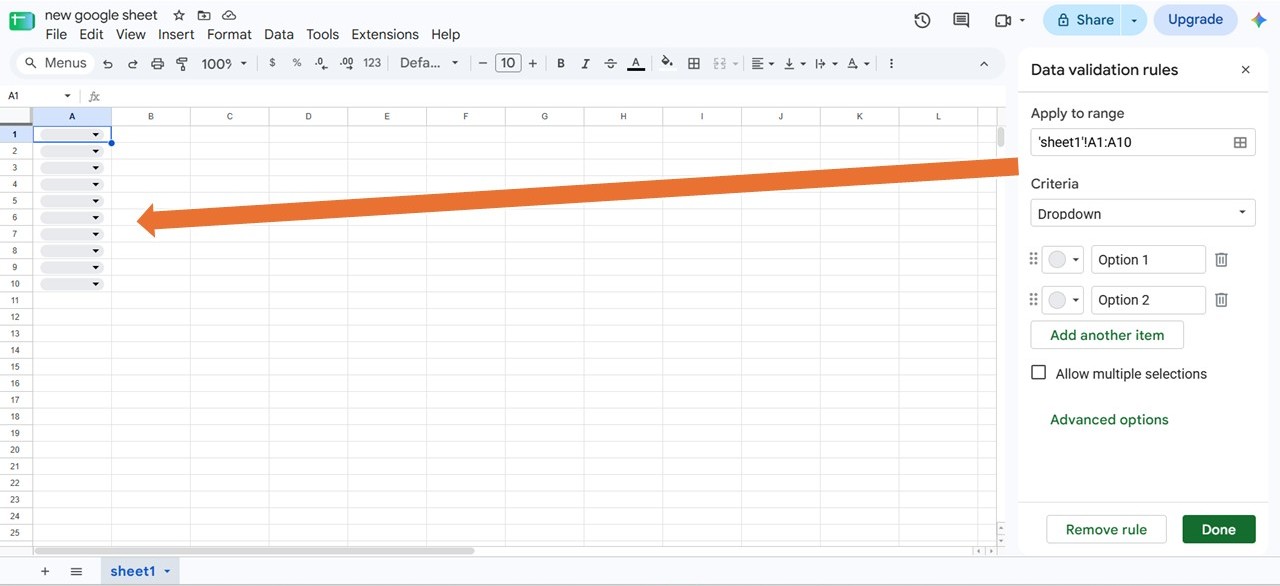
The ‘Data validation rules’ sidebar will open on the right.
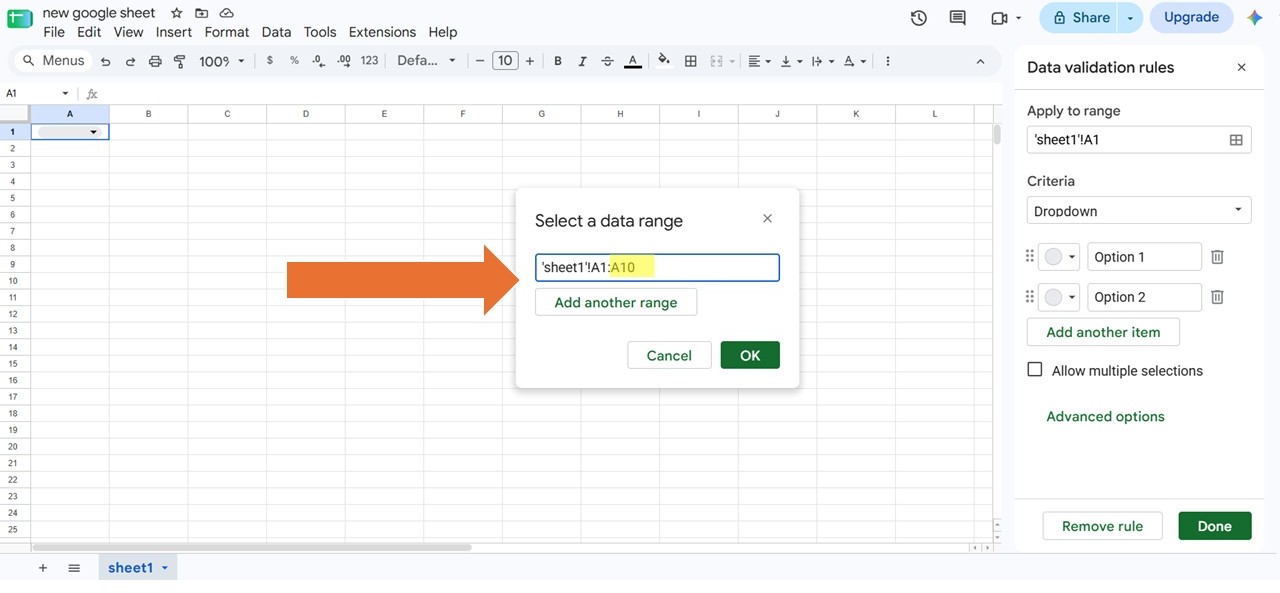
To change the cell range, click ‘Apply to range’. You can define your range using a colon (:) between the cell references. For example, to select cells A1 through A10, enter ‘A1:A10’. You can also adjust this to any range you need.
Once it’s set up, you’ll see drop-down menus appear in all the cells from A1 to A10.
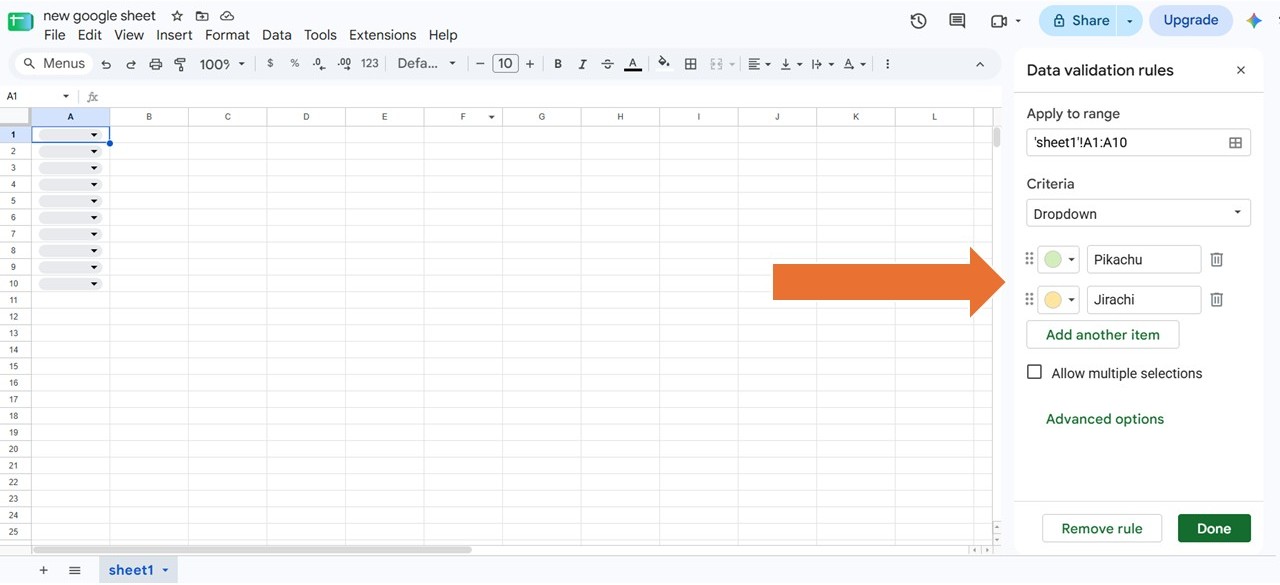
Next, in the right-hand panel, pick the colors you want to display and enter the options for people to choose from.
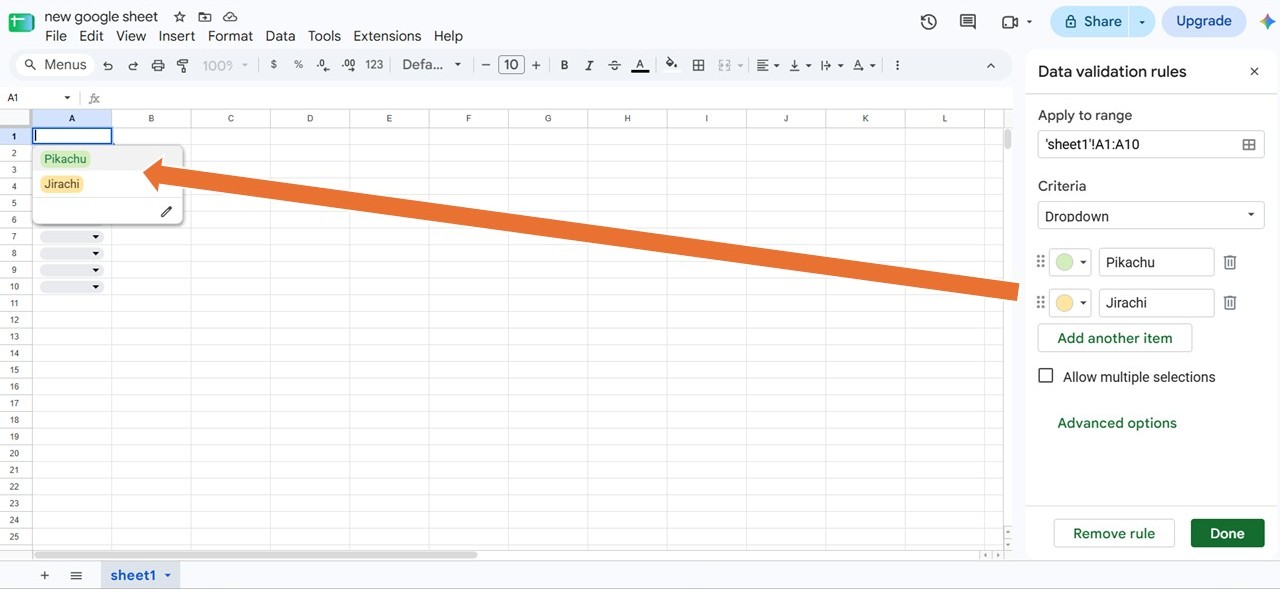
Once that’s done, you’ll see that your customized options are now in the dropdown menu.
For more settings, you can check out ‘Advanced options’.
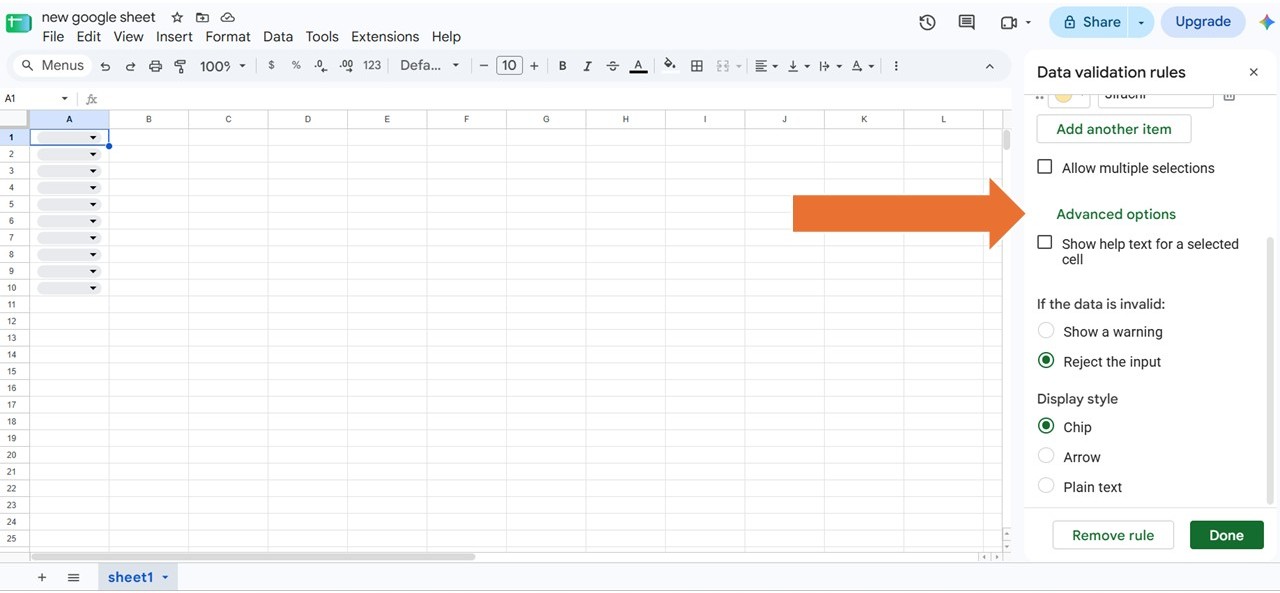
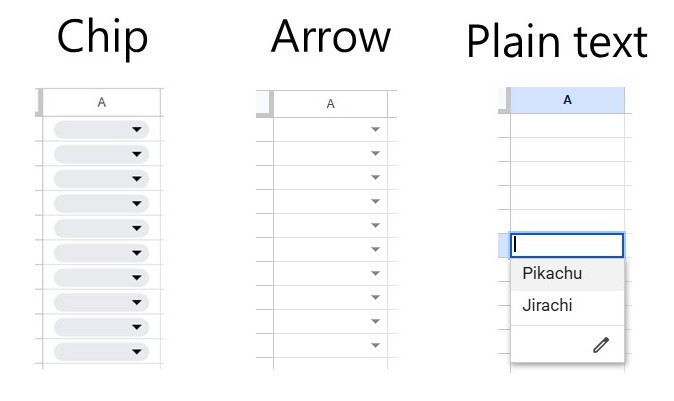
You can also change how it looks with three different display styles: Chip, Arrow, or Plain text.
Super easy, right? Go ahead and give it a try!
by Coco Chang