
Introduction to SLIM: How to save my search results?
Last updated on September 8, 2026
The article will introduce the “Save query” function in the SLIM system. You don’t need to retype in the searching keywords, set up the searching fields and other filtering conditions. You can directly use the queries saved to do the same search again in the future. 【中文說明請見此文章:SLIM雲端圖書館自動化系統介紹(12)儲存檢索條件】
When using the System for Library Information Management (SLIM), you may often search for materials on the same topic. In this case, you can use the “Save Query” feature to save your search conditions. This makes it easier to use the same search again later. You can also turn on notifications to stay up to date with newly added materials.
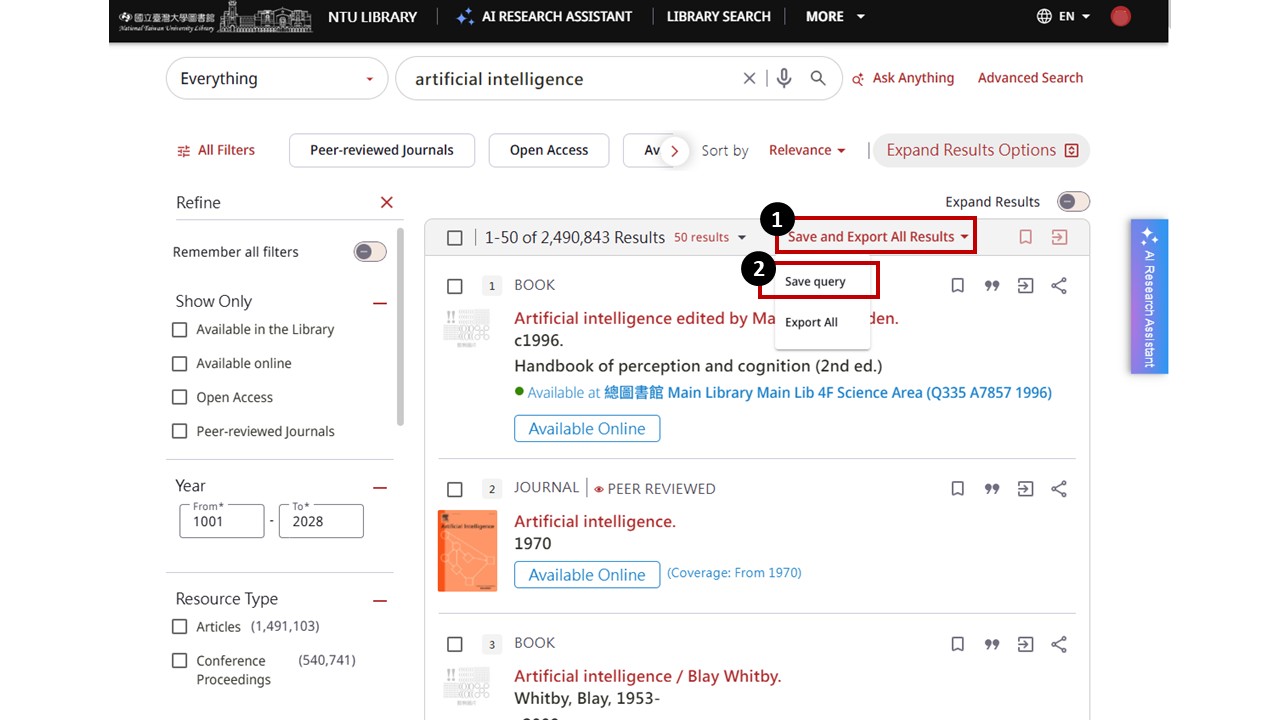
When you are searching for materials and find a set of search conditions that you would like to use again, click “Save and Export All Results”, then select “Save query” to save your current search settings.
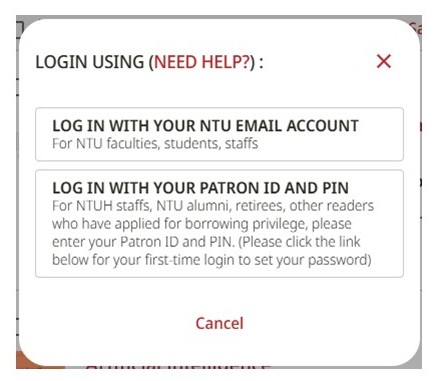
Please note that you need to log in to the library system before using the “Save query” feature. If you are not logged in, the system will guide you to log in when you select this feature.
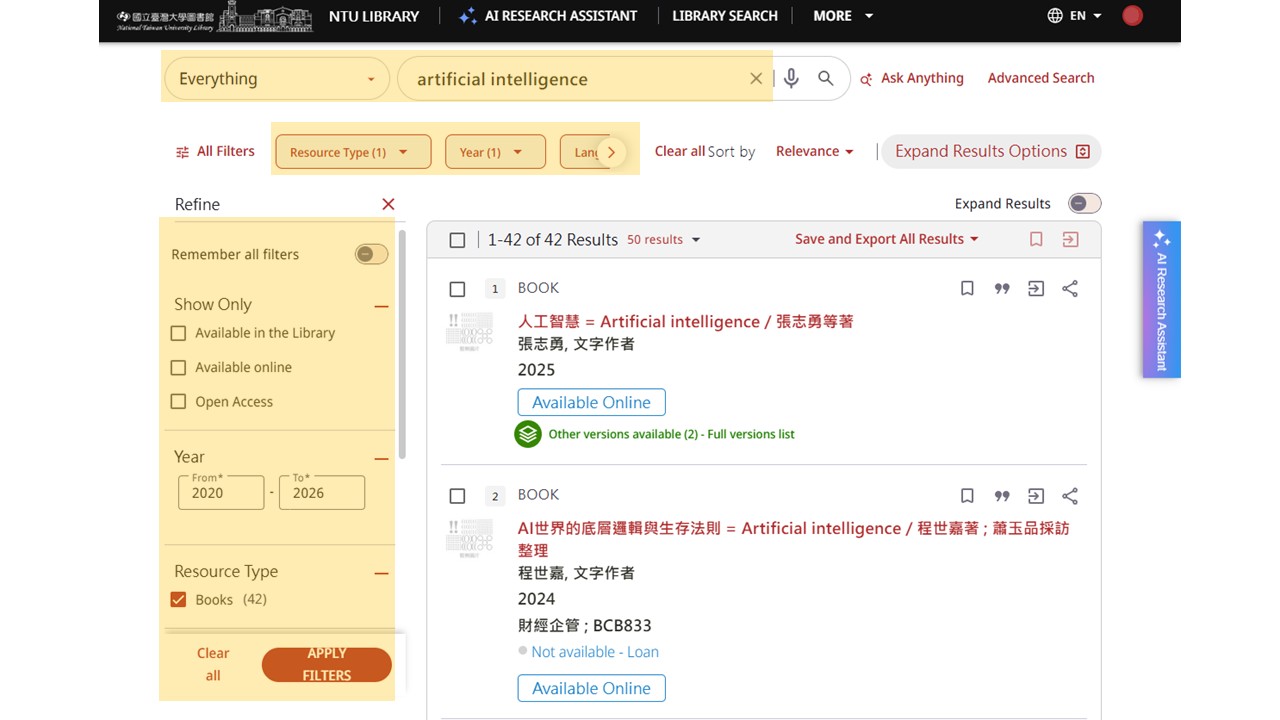
The saved information includes your keywords, filter conditions, and sorting method. For example, if you search for “artificial intelligence” and apply filters for the publication years 2020–2026, Chinese as the language, and books as the resource type, all of these settings will be saved together.
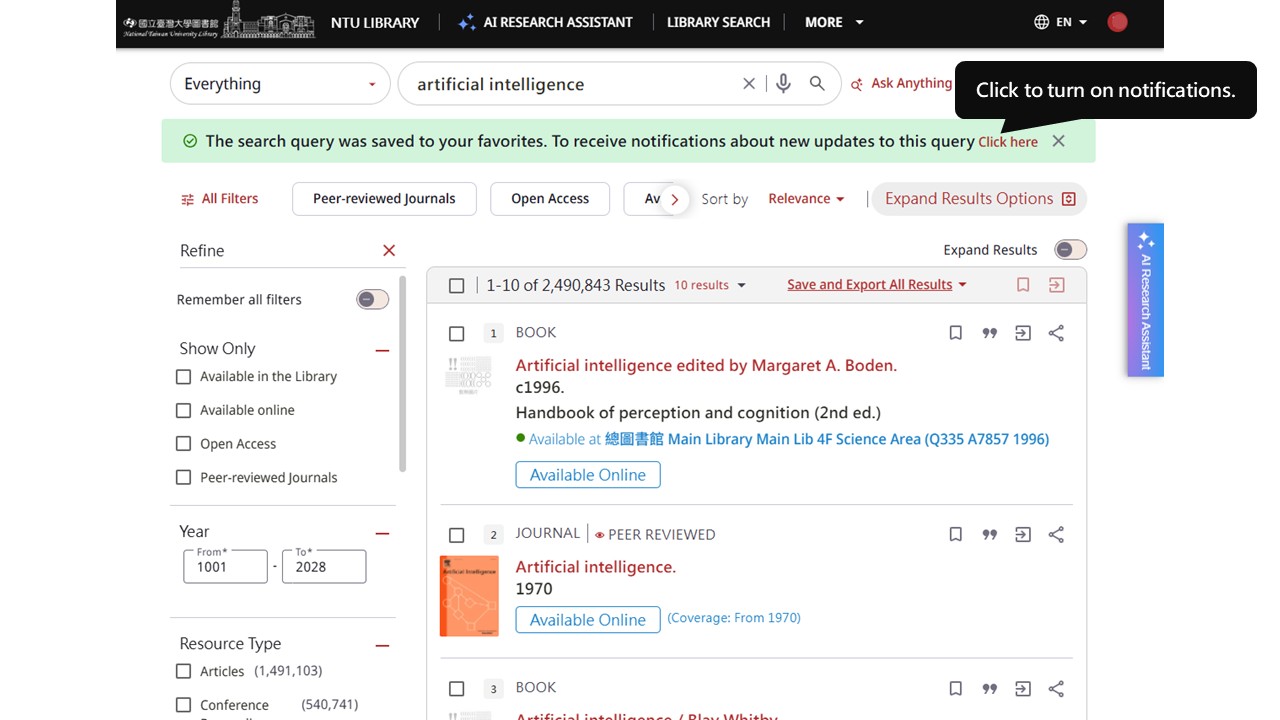
If you want to stay up to date with new materials that match your search conditions, you can turn on notifications when saving a query. Once notifications are enabled, the system will send you an email notification when new materials matching your saved query are added.
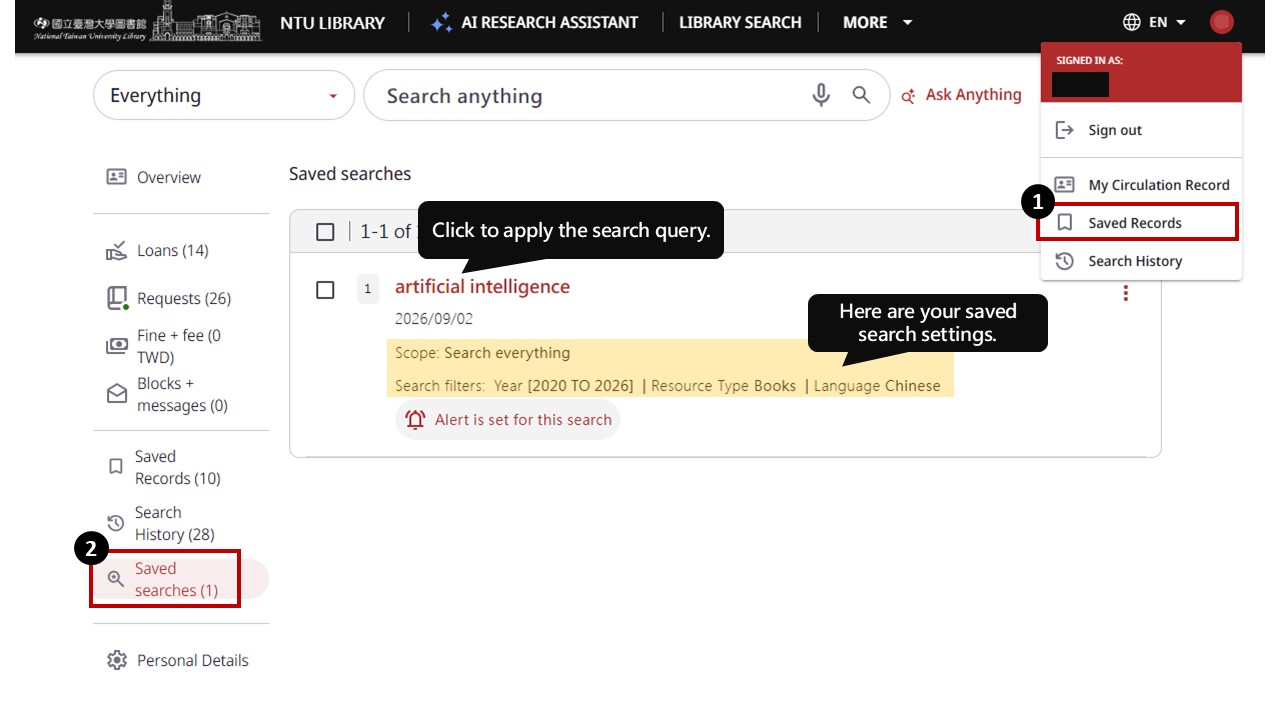
To view your saved queries, first log in to the library system. Then, go to “Saved Records” and select “Saved Searches.” When you want to search for materials on the same topic again, you can simply use a saved query instead of entering the keywords and setting the filters again.
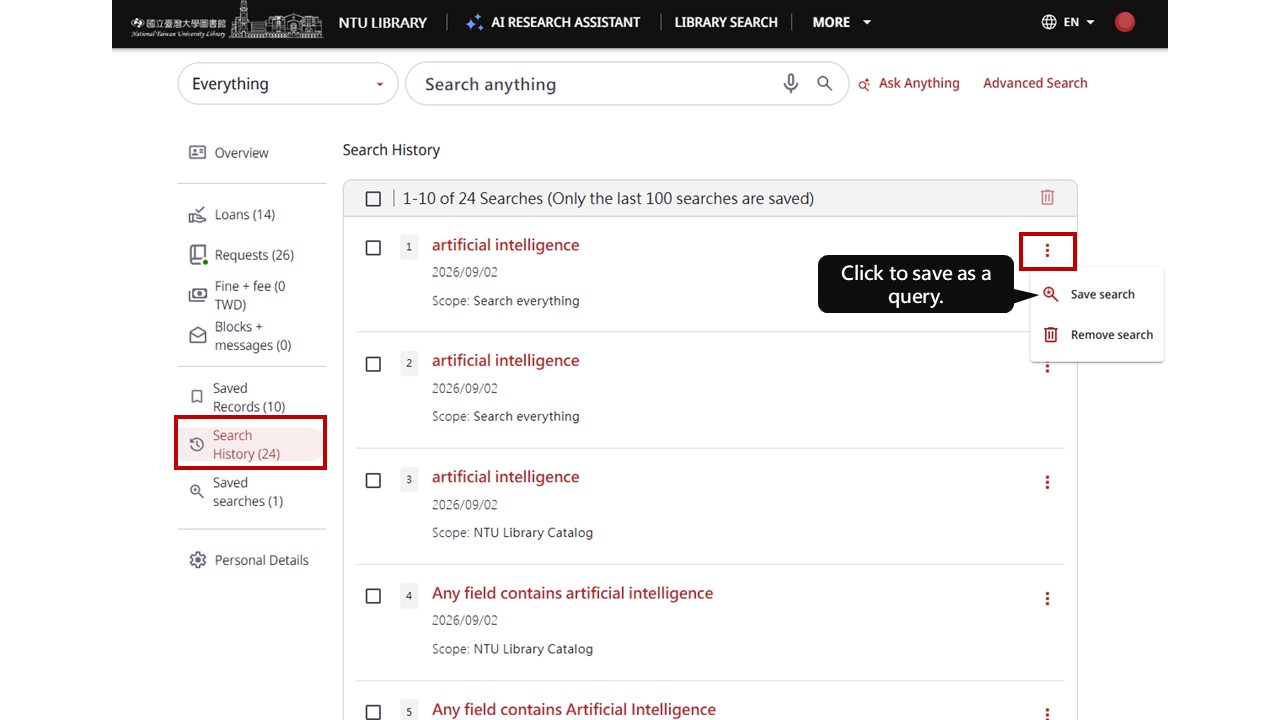
In addition to saving a search while searching for materials, you can also save a previous search from your search history. Go to “Search History” and select “Save Query” next to the search you want to save. The search will then be saved as a saved query.
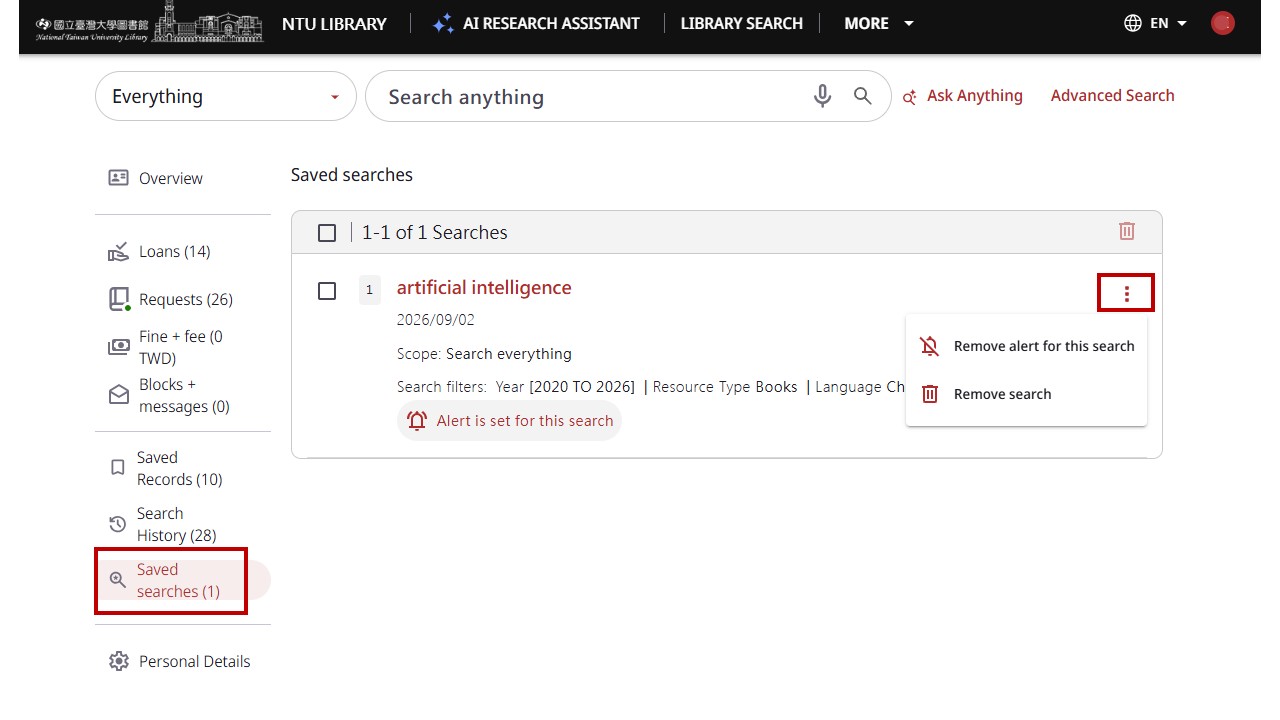
If you no longer need a saved query or want to stop receiving update notifications, you can manage your saved queries under “Saved Queries.” You can turn off notifications or delete a saved query whenever needed, making it easier to manage your searches.
Further Reading:
- Guide for NTU Library SLIM system
- Introduction to SLIM: How to Share and Back Up Your [SAVED SEARCHES]
by Chia-Ho Chen
updated by Chih-Lo Chen 2023/2/7、Coco Chang & YJ Yang 2026/09/08